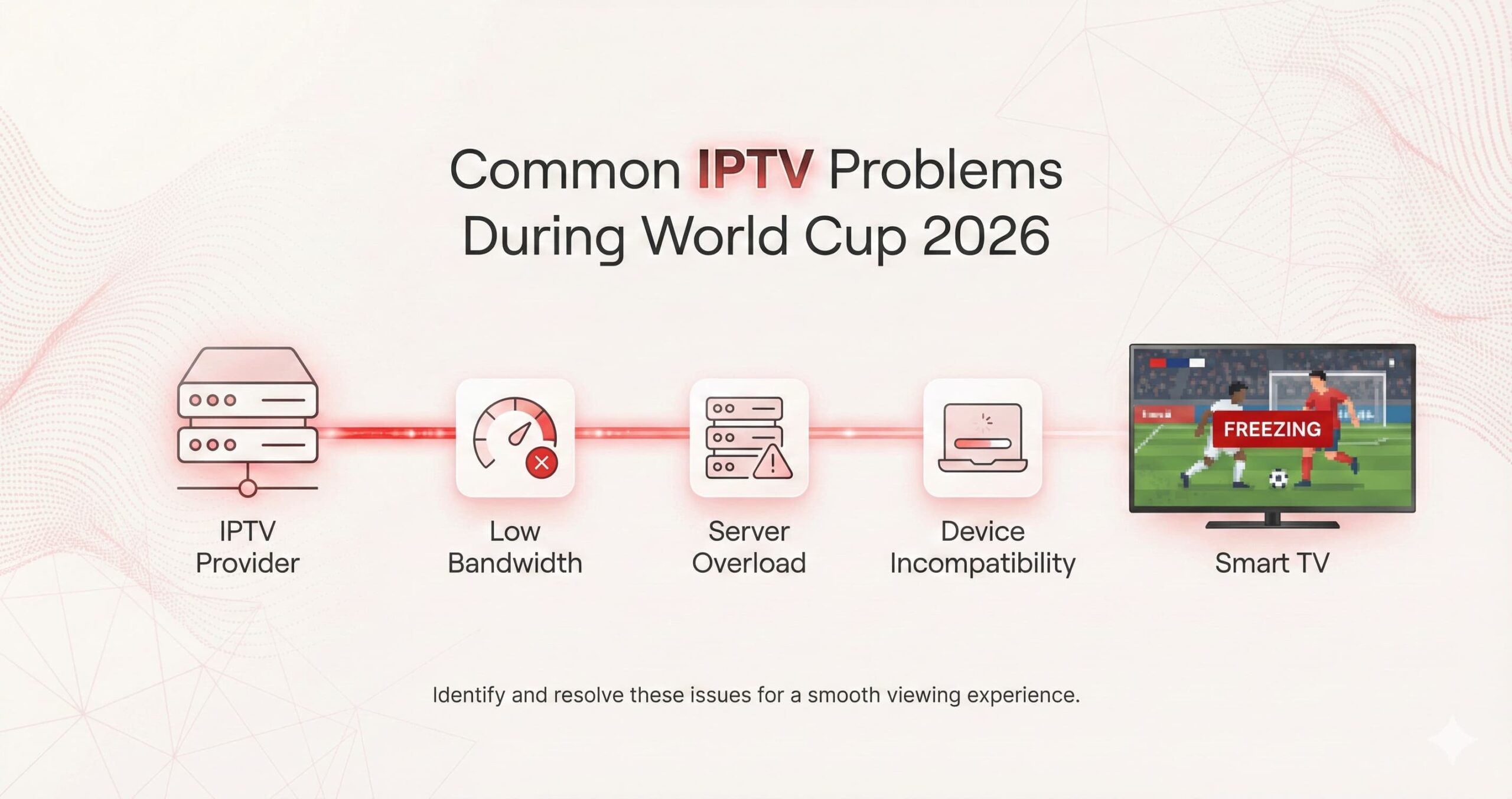
The 2026 World Cup is a period of immense traffic for global streaming servers. Even with a premium service, the sheer volume of simultaneous 4K requests can lead to technical hiccups. When you are moments away from a kickoff, you don’t have time for long support tickets; you need immediate, technical solutions.
This educational guide breaks down the four most common IPTV failures—app crashes, channel downtime, EPG errors, and login failures—and provides the professional “quick-fixes” to get you back into the game before the next whistle.
1. The App Crash: “Force Close” and Memory Management
During a high-bitrate live broadcast, your streaming device (Firestick, Shield, or Smart TV) is working at its thermal limit. If the app suddenly freezes or kicks you back to the home screen, it is usually due to a RAM Overflow or a Cache Conflict.
How to Fix It:
- Clear the App Cache: Go to your device Settings > Apps > [Your Player App] > Clear Cache. This deletes temporary files that may have become corrupted during the stream.
- Force Stop Background Apps: Use a “Background Apps” manager or manually stop apps like YouTube, Netflix, or Spotify. These consume RAM that your IPTV player needs for the 4K buffer.
- The 60-Second Hard Reset: Unplug your streaming device from the power source for a full minute. This clears the system memory (RAM) and resets the hardware’s internal clock.
2. Channel Down: “404” or “Black Screen”
If your primary channel goes dark right as the anthem starts, don’t panic. In 2026, most World Cup providers use Dynamic Linking. This means they can move the stream to a new server to avoid a takedown or a crash.
Technical Troubleshooting:
- The “Update Playlist” Command: Go to your app settings and click “Update Playlist” or “Refresh Content.” This forces the app to pull the newest, working URLs from the provider’s server.
- Switch the Video Decoder: Sometimes the “Hardware” decoder fails on a specific stream. Go to Settings > Player > Decoder and switch to “Software” or “Native.” While this uses more CPU, it often brings a “dead” channel back to life.
- The Alternate Feed Strategy: Every World Cup match is broadcast by dozens of countries. If “USA – FOX” is down, try the UK (BBC), Canada (TSN), or an Arabic feed (beIN). The match is the same; only the commentary changes.

3. EPG Issues: “No Information” or Incorrect Times
An Electronic Program Guide (EPG) that shows the wrong match time or simply says “No Information” makes it impossible to use features like Catch-Up or Recording.
How to Fix EPG Errors:
- Time Zone Offset: Go to Settings > EPG > EPG Timeshift. If the match says it starts at 4 PM but it’s actually 2 PM, adjust the offset by -2.0. This fixes the alignment without needing a server update.
- Clear EPG Data: Sometimes the guide data gets “stale.” Find the “Clear EPG” button in your settings, then click “Update EPG.” This wipes the old database and downloads a fresh schedule.
- Check the “tvg-id”: If you are a pro user editing your own M3U, ensure the
tvg-idin your file matches the ID in the EPG source. A single missing letter will result in “No Information.”
4. Login Errors: 401, 403, and Server Connection Failed
Login errors usually happen when the provider’s “Handshake Server” is under heavy load. However, it can also be a sign of an ISP Block.
| Error Code | The Fix |
|---|---|
| 401 Unauthorized | Check for typos or an expired subscription. Try logging in on a second device to verify. |
| 403 Forbidden | This is usually an ISP block. Turn on your VPN immediately to mask your traffic. |
| Server Connection Failed | Reboot your router. Your IP might be temporarily “soft-banned” for too many refresh requests. |
5. Preventing the “Match Day” Disaster
The best way to fix a problem is to prevent it. Follow this educational “Pre-Flight” checklist 1 hour before the World Cup kickoff:
- Verify VPN: Ensure your VPN is connected to a “Streaming Optimized” server near your location.
- Update App: Ensure you are using the latest 2026 version of TiviMate or Smarters.
- Check Ethernet: Unplug and replug your Ethernet cable to ensure a solid physical connection.
- Refresh Guide: Perform a manual EPG update to see the latest knockout-stage match times.
Conclusion
Technical issues during the 2026 World Cup are often the result of unprecedented global demand. By understanding the basics of Cache Management, Decoder Switching, and DNS/VPN usage, you can troubleshoot 99% of common problems in under two minutes. Preparation is the difference between watching the goal and staring at a loading screen. Secure your setup, know your error codes, and enjoy the tournament.