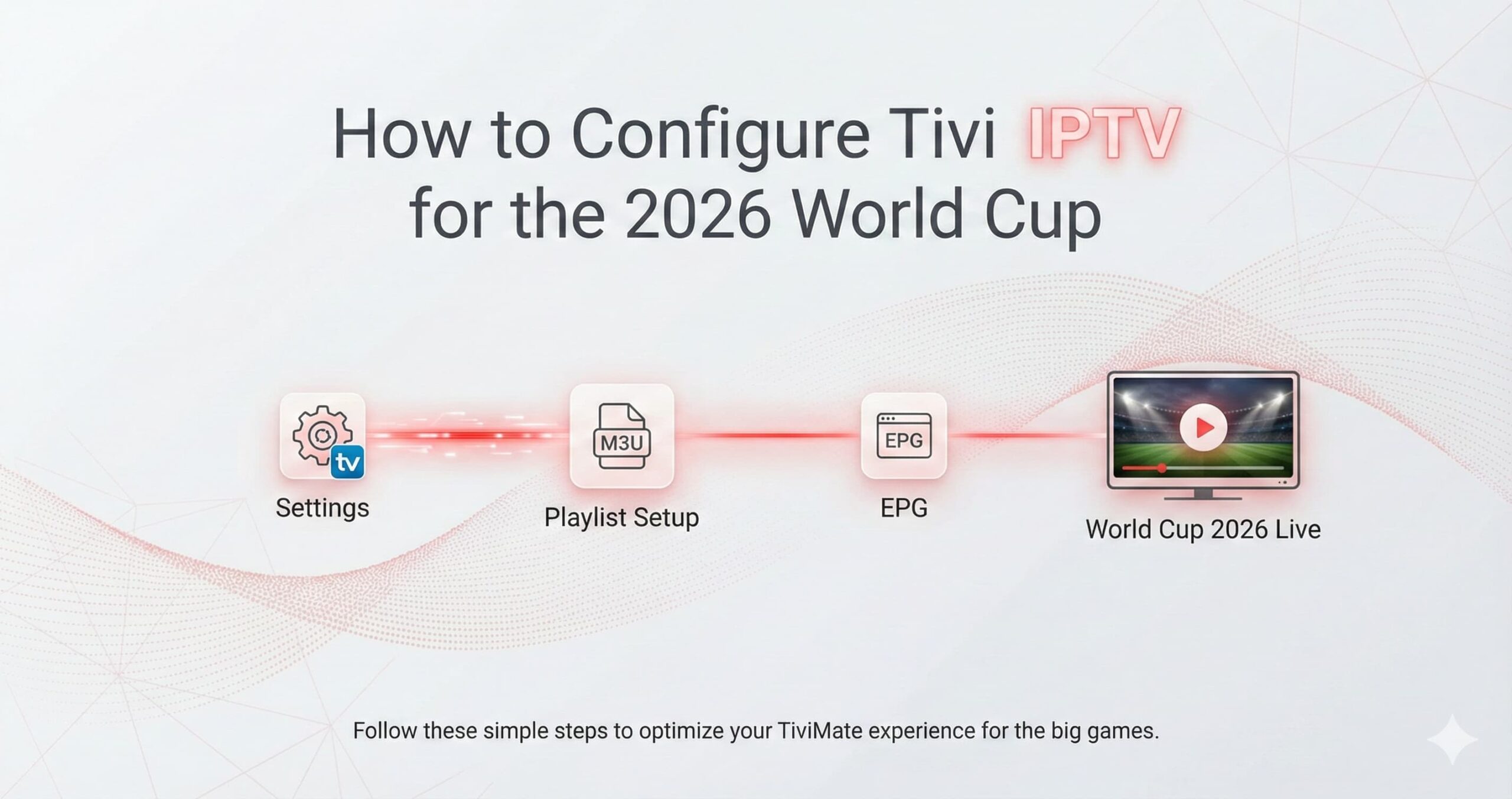
As the 2026 World Cup approaches, the excitement for 48 teams competing across North America is reaching a fever pitch. To experience every minute in stunning 4K without the clunky interface of traditional cable, TiviMate has established itself as the premier IPTV player of 2026. Known for its “broadcast-style” feel and advanced multi-screen capabilities, TiviMate is the ultimate tool for a professional sports setup.
This educational guide provides a technical, step-by-step walkthrough on how to install, activate, and optimize TiviMate specifically for the 2026 World Cup. Whether you are a seasoned user or a newcomer, these settings will ensure you never miss a goal due to technical lag.
Step 1: Installation and Initial Setup
TiviMate is designed for Android-based systems (Android TV, Google TV, and Amazon Firestick). Because it is a “player-only” application, the first step is getting the software onto your device.
- For Android TV/Google TV: Open the Google Play Store, search for “TiviMate IPTV Player,” and click install.
- For Amazon Firestick: Since TiviMate isn’t always in the Amazon Appstore, use the Downloader app. Enter the official TiviMate shortcode (e.g.,
272483) to download the latest 2026 APK and follow the prompts to install.
Step 2: Unlocking Premium Features
While TiviMate has a free version, the features required for a world-class World Cup experience—such as Multi-view and Scheduled Recording—require the Premium version. In 2026, a lifetime subscription covers up to 5 devices, making it a highly cost-effective investment.
- Open TiviMate and navigate to Settings > Unlock Premium.
- If you are on a Firestick, you must use the TiviMate Companion app on an Android smartphone or a PC emulator (like BlueStacks) to process the payment.
- Once purchased, log in with your account details on your TV to activate the premium features instantly.
Step 3: Integrating Your World Cup Playlist
To populate the app with channels, you need to add your service details. We recommend using the Xtream Codes API method for the 2026 World Cup because it handles large channel lists and EPG (Electronic Program Guide) data more efficiently than standard M3U links.
- Go to Settings > Playlists > Add Playlist.
- Select Xtream Codes.
- Enter your Server URL, Username, and Password provided by your service.
- Click Next and let TiviMate process the channels and VOD library.
Step 4: Creating a “World Cup 2026” Favorites Group
With thousands of global channels, finding the right match can be overwhelming. TiviMate allows you to create custom groups to keep your eyes on the ball.
While on the TV Guide, long-press the Select button on a channel that will broadcast the World Cup (e.g., FOX, Telemundo, BBC, or beIN Sports). Select “Add to Favorites.” You can then go to Settings > Appearance > TV Guide and ensure your “Favorites” group is at the very top of the list for quick access during match days.

Step 5: Master the Multi-View Feature
The 2026 group stage will feature multiple concurrent matches. TiviMate Premium allows you to watch up to 9 screens at once (though 2-4 is recommended for most 4K devices).
- While watching a live match, press the Select button to bring up the bottom menu.
- Scroll down and select Multi-view.
- Select “Add Screen” and choose your second World Cup channel.
- You can toggle the audio between screens by simply navigating with your remote’s directional pad.
Step 6: Optimizing for 4K Performance
To ensure a buffer-free 2026 World Cup, you must tune TiviMate’s internal engine to match your network speed.
Recommended Technical Settings:
- Buffer Size: Navigate to Settings > Playlists > [Your Playlist] > Buffer Size. If you have fiber internet (100Mbps+), set this to “None” for instant zapping. If you are on Wi-Fi, set it to “Small” (1-2 seconds).
- Audio Passthrough: Enable this in Settings > Player to get the full stadium atmosphere if you have a surround sound system.
- AFR (Auto Frame Rate): Turn this ON. This allows TiviMate to match your TV’s refresh rate to the broadcast (e.g., 50Hz for European channels or 60Hz for US channels), eliminating “motion judder.”
Step 7: Setting Up Scheduled Recordings
Since the 2026 games are hosted in North America, fans in different time zones may need to record matches. TiviMate makes this easy, but it requires a storage location.
Go to Settings > Other > Recording. You can set up a path to a USB drive (via an OTG cable on Firesticks) or a Network Attached Storage (NAS). Once set, simply find the match in the EPG, long-press, and select “Schedule Recording.” TiviMate will handle the rest, even if the app is closed.

Conclusion: Your Stadium in the Living Room
By following this guide, you have transformed TiviMate from a simple player into a professional-grade broadcasting hub for the 2026 World Cup. With Multi-view ready, 4K settings optimized, and your favorites organized, you are prepared for the most immersive football tournament in history. Keep your EPG updated, ensure your internet connection remains stable, and enjoy the beautiful game like never before, visit IPTV world cup 2026.
Need more help? Check our other articles on the best hardware for 2026 and how to eliminate buffering forever.